
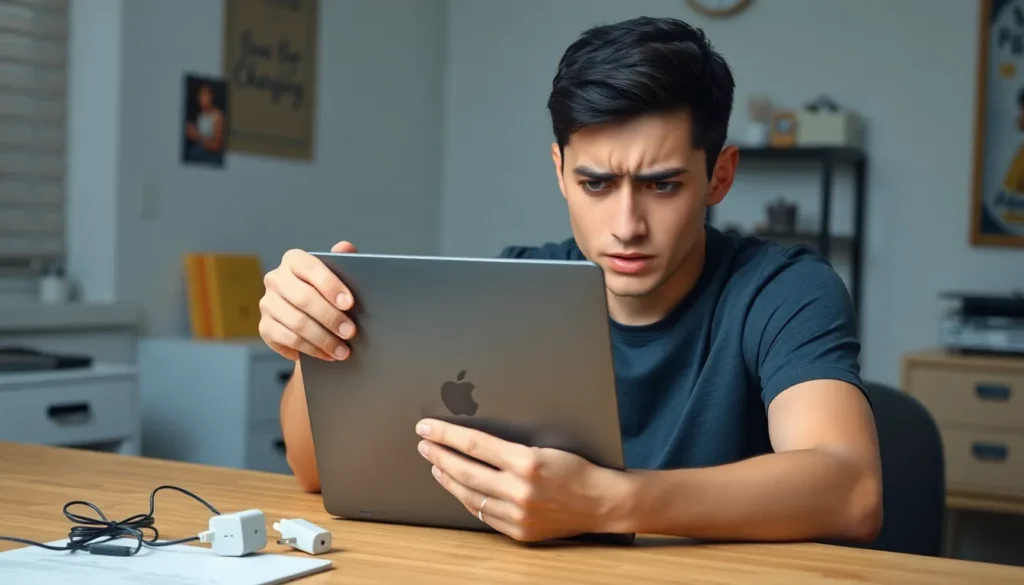
A Chromebook not charging can be a frustrating experience, especially when it disrupts productivity. Many users rely on these devices for work, school, or entertainment, so understanding the reasons behind this issue is crucial.
There are several common culprits that could prevent a Chromebook from charging, ranging from hardware malfunctions to software glitches. Identifying the root cause can help users troubleshoot effectively and get their device back up and running in no time. In this article, we’ll explore the most frequent reasons why a Chromebook won’t charge and offer practical solutions to resolve the problem.
Common Reasons Your Chromebook Won’t Charge
Several factors can prevent a Chromebook from charging effectively. Understanding these common issues can simplify the troubleshooting process and help restore functionality.
Faulty Charger or Cable
A faulty charger or cable often causes charging problems. Users should inspect the charger for visible damage, such as frayed wires or bent connectors. It’s essential to test with a different compatible charger or cable to determine if the original is malfunctioning. Some chargers may not supply adequate power, leading to slow or no charging.
Damaged Charging Port
A damaged charging port can hinder charging efforts. Users should examine the port for debris or obstruction that may affect connectivity. Carefully cleaning the port with compressed air may resolve minor blockages. If the port appears loose or physically damaged, professional repair or replacement may be necessary to restore charging capabilities.
Battery Issues
Battery issues can significantly impact a Chromebook’s ability to charge. Users should consider the following factors when troubleshooting.
Old or Defective Battery
Old batteries degrade over time, leading to reduced charging capacity. Most laptop batteries, including those in Chromebooks, typically last between 2 to 4 years based on usage patterns. A defective battery may show signs like swelling, no charge hold, or rapidly draining power. Users can perform a battery test by checking the battery health through device settings. If the battery health percentage is low, replacing the battery with a compatible model is advisable.
Software Problems Affecting Charging
Software issues can also prevent a Chromebook from charging properly. Outdated operating systems might cause conflicts with charging mechanisms. Users should ensure their Chromebook runs the latest Chrome OS version by navigating to settings and selecting the “About Chrome OS” option. If problems persist, a factory reset might resolve software glitches that interfere with charging. Backup data before performing a reset to avoid data loss.
Troubleshooting Steps
Follow these troubleshooting steps to help resolve charging issues with a Chromebook.
Checking Power Sources
Check the power source to ensure it supplies adequate voltage. Inspect the wall outlet by testing it with another device, such as a lamp or phone charger. Verify the charger and cable for any visible damage, including frayed wires or broken connectors. Use a different compatible charger and cable to see if the issue persists. Ensure the charging cable is securely connected to both the power adapter and the Chromebook.
Resetting the Chromebook
Resetting the Chromebook can resolve various software-related issues affecting charging. Press and hold the Refresh button and the Power button simultaneously until the device shuts down. Release both buttons, then press the Power button to turn it back on. This process restores normal operation and may clear any software glitches interfering with charging. For a factory reset, access Settings, select “Advanced” then “Reset settings”, and choose “Powerwash.” Back up essential data before proceeding, as this step removes all local files.
When to Seek Professional Help
Users should seek professional help if troubleshooting fails to resolve the charging issue.
- Inability to Charge: If a Chromebook still won’t charge after trying different chargers, cables, and cleaning the charging port, this indicates a more serious problem. Persistent charging failure may point to internal hardware issues.
- Battery Degradation: If a user notices significant battery swelling or rapid power loss despite using a relatively new battery, professional evaluation is crucial. Safety concerns arise with damaged batteries, necessitating immediate assessment.
- Internal Damage: Users should consult experts if there are signs of internal damage, such as overheating during charging. Overheating can lead to further complications and requires specialized repair.
- Software Corruption: If the Chromebook experiences recurrent software issues, particularly after a factory reset, professional assistance may be necessary. Corrupted operating systems can limit usability, and skilled technicians can provide solutions that self-service cannot.
Obtaining expert help ensures the safe and effective resolution of complex charging problems, safeguarding both the device and user.
Addressing a Chromebook that won’t charge can be a frustrating experience. By identifying the common issues such as faulty chargers damaged ports or battery problems users can take proactive steps to troubleshoot effectively. Ensuring that all connections are secure and testing with alternative chargers can often reveal the root cause.
If problems persist seeking professional help might be the best course of action. Experts can diagnose internal hardware issues or severe battery concerns that require specialized attention. With the right approach users can restore their Chromebooks to full functionality and continue their work without interruption.